Activity, Fragment & Lifecycle
Lifecycle in Android describes how components are created, become visible, move to the background, are destroyed, and restore state. The practical question is not only which callback runs next, but which owner should hold each piece of state or resource.
Activity and Fragment
Activity lifecycle
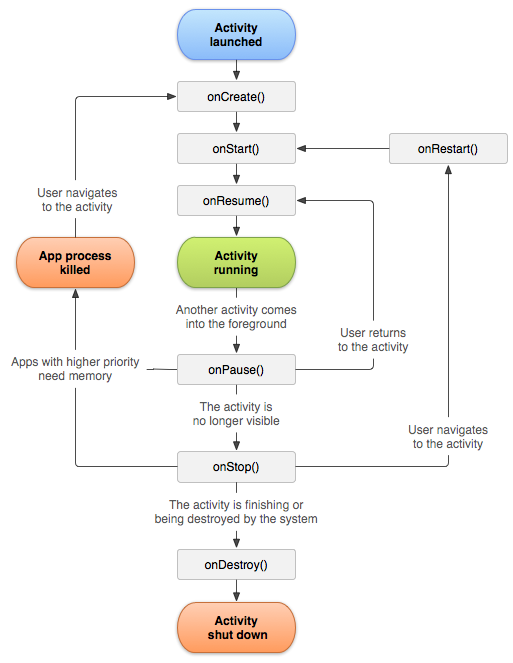
Activity lifecycle describes how a screen moves through creation, visibility, user interaction, backgrounding, and destruction.
The basic callback sequence is:
When returning after onStop(), onRestart() may be called before onStart().
onCreate()- initialize the screen, restore small saved state, connect dependency entry points, and obtainViewModels.onStart()- theActivitybecomes visible.onResume()- theActivityis in the foreground and interactive.onPause()- theActivityloses focus but may still be partly visible.onStop()- theActivityis no longer visible.onDestroy()- theActivityinstance is being destroyed.
Do not use onDestroy() as the only place to save important data. The process may be terminated without the activity receiving a final cleanup callback.
On a configuration change, the current Activity instance is usually destroyed and a new one is created. Store state according to its lifetime:
ViewModelfor screen state that should survive configuration changes;SavedStateHandle/onSaveInstanceState()for small restorable UI state;- repository, database, DataStore, cache, or backend for durable data.
Fragment lifecycle
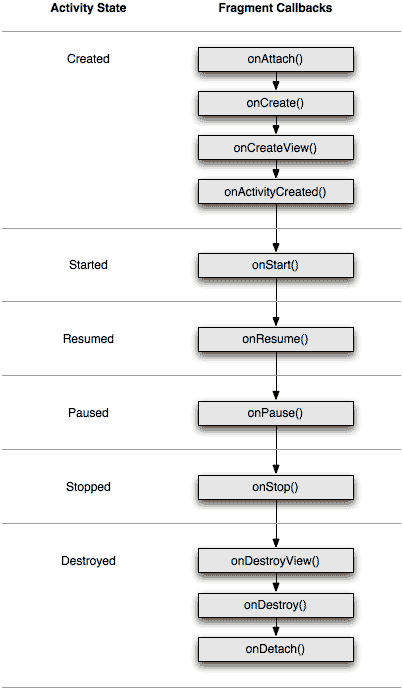
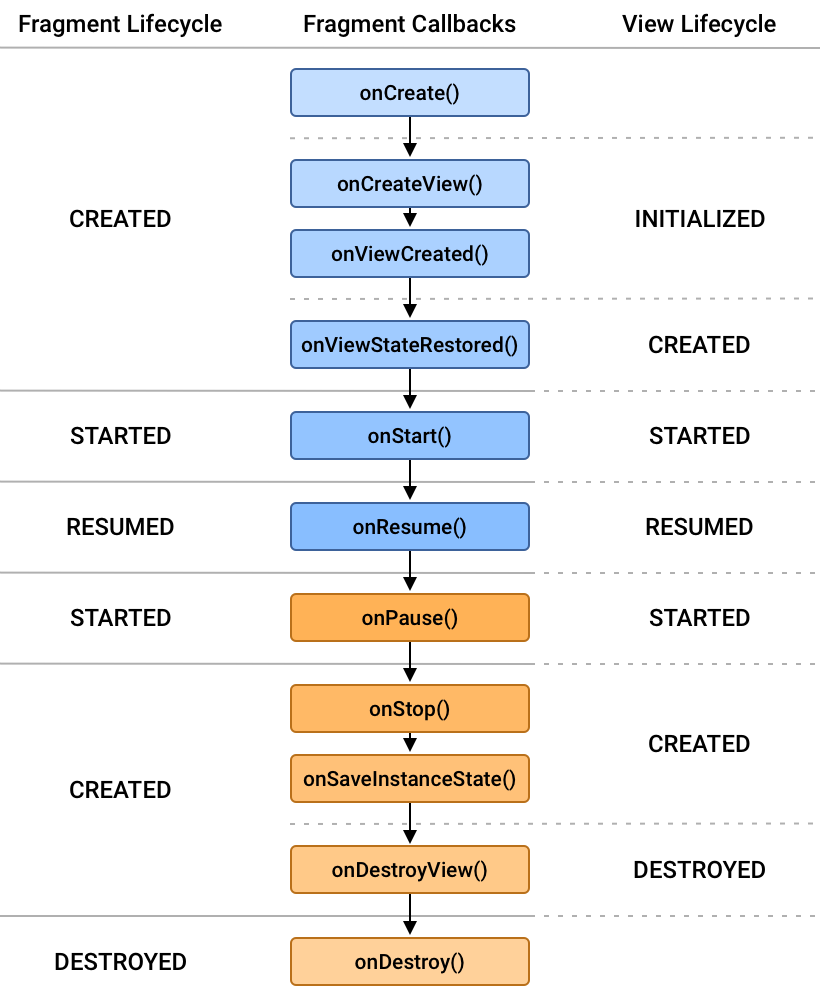
A Fragment has two related lifecycles: the lifecycle of the Fragment object and the lifecycle of its View. The Fragment may remain alive after onDestroyView().
A typical callback sequence is:
onAttach() -> onCreate() -> onCreateView() -> onViewCreated()
-> onStart() -> onResume()
-> onPause() -> onStop() -> onDestroyView() -> onDestroy() -> onDetach()
UI work tied to the Fragment view should use viewLifecycleOwner, not the Fragment lifecycle itself. This is especially important for Flow collection, listeners, adapters, and references to views.
onDestroyView() is where ViewBinding and other view references should be cleared. onDestroy() belongs to the Fragment object and can happen later.
Application lifecycle
Application is created once per app process and is usually used for process-wide initialization such as DI, logging, analytics, and AndroidX Startup-related infrastructure.
Main callbacks include onCreate(), onConfigurationChanged(), onLowMemory(), and onTrimMemory(). onTerminate() is not a normal production shutdown callback and is mostly relevant to emulated or test environments.
A subtle startup detail: the Application object exists before Application.onCreate(), while manifest ContentProviders can be initialized before Application.onCreate(). This is why some libraries historically used provider-based auto initialization.
onTrimMemory(level) tells the app that the system wants memory to be released. For example, TRIM_MEMORY_UI_HIDDEN means the UI has moved to the background and UI-related resources can be released.
Which of onStop() or onDestroy() may not be called?
If the app process is killed by the system in the background, an Activity may not receive the normal full set of final callbacks. In particular, onDestroy() is not guaranteed as a place to save critical data.
Reliable save logic should happen earlier: in a lifecycle-aware state holder, repository, database/cache, or through onSaveInstanceState() for small transient UI state.
onStop() is normally called when the Activity fully stops being visible, but under hard process termination, architecture must not assume that any final callback will definitely have time to run.
The key distinction:
- lifecycle callbacks coordinate a live component;
- process death ends the whole process and requires restoration from saved or durable state.
Configuration changes
Screen rotation
Screen rotation usually causes a configuration change: the current Activity is recreated so Android can apply resources for the new configuration.
A typical transition includes the old activity moving through pause/stop and destruction, followed by a new activity receiving onCreate(), onStart(), and onResume(). onSaveInstanceState() and onRestoreInstanceState() participate when small UI state must be saved and restored, but app logic should not depend on one exact ordering of every callback.
ViewModel survives a normal configuration change because it is tied to a ViewModelStoreOwner, not to one specific Activity instance. But ViewModel does not survive process death: recovery after process death requires SavedStateHandle, saved instance state, database/cache, or another persistent source.
onSaveInstanceState() is suitable for small UI state, such as selected tab, scroll position, text input, or an ID needed to restore content. Do not put large objects, bitmaps, or data that can be loaded again into it.
android:configChanges can prevent Activity recreation for selected configuration changes, but then responsibility for handling those changes manually moves to the app. It is a tool for special cases, not a universal way to “fix” rotation.
How does ViewModel survive screen rotation?
ViewModel survives screen rotation because it is stored not inside a specific Activity / Fragment instance, but in a ViewModelStore associated with a ViewModelStoreOwner.
During rotation, the old Activity is destroyed and a new one is created, but if this is a normal configuration change, Android keeps the ViewModelStore and the new owner receives the same ViewModel instance through ViewModelProvider.
ViewModel is suitable for screen state, loaded data, and ongoing UI logic that should not be lost when UI is recreated. It is not persistent storage and does not survive process death.
Recovery after process death requires SavedStateHandle, onSaveInstanceState(), database, DataStore, cache, or reloading data from a repository.
Activity launch
Launch Modes for Activity
Launch mode defines how an Activity is created or reused in a task/back stack. It is usually specified in AndroidManifest.xml with android:launchMode.
standard- the default mode: every launch creates a newActivityinstance and puts it on the back stack.singleTop- if theActivityis already at the top of the back stack, a new instance is not created and the existing one receivesonNewIntent(). If it is not at the top, a new instance is created.singleTask- theActivityexists as a single instance in its task. If such an instance already exists, the system delivers theIntentto it throughonNewIntent()and clears activities above it.singleInstance- a stricter version ofsingleTask: theActivityis placed in a separate task and other activities are not added to that task. It is rare in modern Android.
Launch modes affect the back stack, deep links, notifications, and Back button UX, so they should be used carefully. standard works for most screens, while singleTop is useful when a top activity should receive a new Intent instead of creating another instance.
Intent flags for launching Activity
Intent flags control Activity launch and back stack behavior for a specific Intent.
FLAG_ACTIVITY_NEW_TASKlaunches anActivityin a new task or reuses an existing task if it matches by affinity. It is often needed when launching anActivityfrom a non-ActivityContext.FLAG_ACTIVITY_SINGLE_TOPdoes not create a new instance if the targetActivityis already at the top of the current task. Instead, the existing instance receives the newIntentthroughonNewIntent().FLAG_ACTIVITY_CLEAR_TOPlooks for an existingActivityinstance in the current task. If found, all activities above it are removed, and theIntentis delivered to thatActivity. Depending onlaunchModeand flags, the existing instance may receiveonNewIntent()or be recreated.
launchMode defines default behavior in the manifest, while intent flags customize launch behavior for a specific Intent.